Omni Calculator Builder Case Study: Variable Income Cash Flow Planner
Report Highlights
Another client, another spreadsheet. Sound familiar? Every client situation is slightly different, which usually means duplicating spreadsheets, adjusting formulas, and reorganizing messy tables over and over again. Sharing them with clients is not ideal either — spreadsheets can be difficult to read, time-consuming to make presentable, and easy to accidentally break.
So instead, we decided to create a reusable cash flow calculator using the Omni Calculator Builder. Now we can quickly customize it for each client and share a clean, professional-looking result without risking accidental edits.
The best part? We built it in just a few minutes.
Here’s a quick look at it in action. Let’s explore how we did it and what’s possible with the Calculator Builder!
Let’s start from the very beginning. Inspired by a Pavilion , we wanted to create a versatile, visually appealing tool for analyzing cash flow for clients with both regular take-home pay and additional commissions. In other words, a simple way to understand income, expenses, savings, and overall financial health without relying on another spreadsheet.
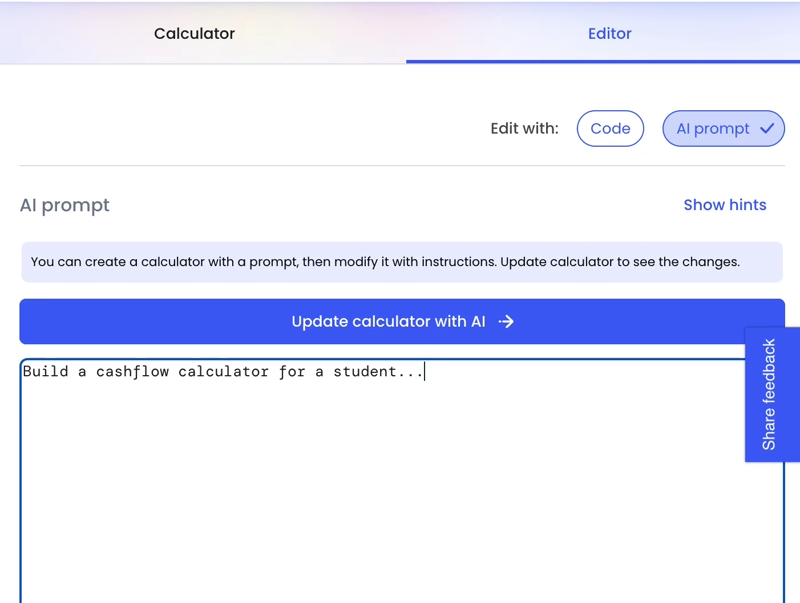
One of the easiest ways to build a calculator with the Omni Calculator Builder is to simply describe what you want to achieve. Here’s an example of the AI prompt we used:
AI prompt:
Create a cash flow calculator with the inputs:
- Monthly take-home pay and expected commissions.
- Housing, transportation, debts, groceries, health, subscription, and entertainment expenses.
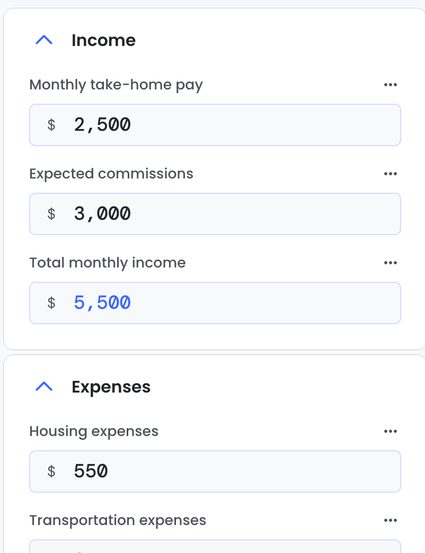
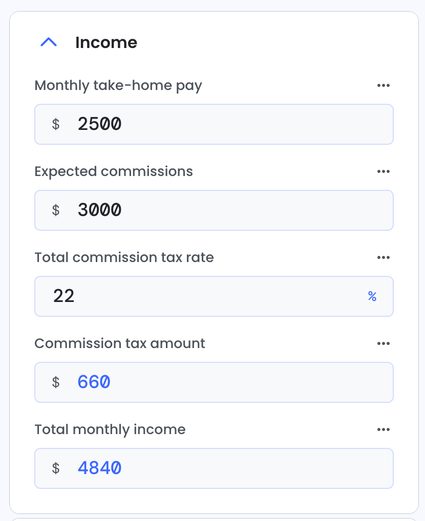
Something is still missing from the calculator. Yes, 401(k) contributions and accounting for taxes on commissions would be nice! Let’s assume the client already knows their regular take-home pay, but is unsure how much of their commission income should realistically be set aside for taxes.
We also want some additional financial health summary outputs. To handle this, we used another AI prompt.
Follow up AI prompt:
Include two new inputs:
- 401(k) contributions — a plain value in the expenses group that should be added to the monthly expenses.
- Total commission tax rate — a percentage in the income group that should be used to find the tax amount from the expected commissions.
Add new outputs:
- Annual projected surplus
- Expense-to-income ratio
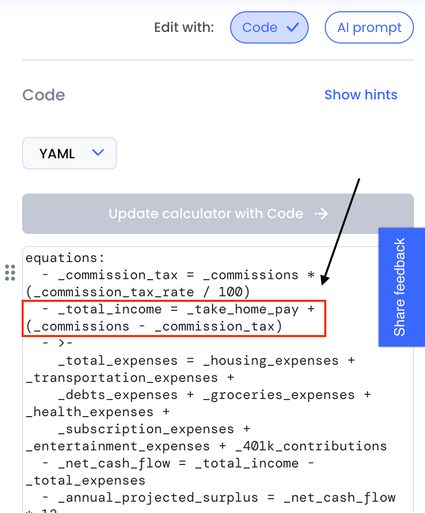
Now let’s quickly verify whether the equations were updated correctly. Click the Code button to inspect how variables and formulas are stored inside the Omni Calculator Builder.
In our case, we wanted to confirm that commission taxes were properly included in the total income calculation:
_total_income = _take_home_pay + (_commissions - _commission_tax)
Everything looks correct!
Now let’s imagine you have a new client — someone who recently took out a student loan, lives close to the university, and doesn’t spend much on subscriptions or gym memberships. Instead of rebuilding the calculator from scratch, we can quickly personalize the existing version while keeping the original template for future clients.
There are two easy ways to do this:
- Apply the changes and save the calculator as a new revision.
- Open the three-dot menu in the Omni Calculator Builder calculator list and choose Clone and Edit.
Using the following AI prompt, we generated the final version of the calculator shown at the beginning of this case study.
AI prompt to personalize the calculator:
Rename the following variables:
- Housing –> Monthly rent
- Debt -> Student loan monthly payment
Remove the following variables:
- Transportation
- Health
- Subscription