
Omni Calculator Builder Case Study: Unit Price Comparison
Report Highlights
We couldn’t resist building a simple unit price comparison tool that we can use anytime while shopping. Just enter the product’s price and quantity, then choose the optimal option.
Are you someone who hunts for the best price, too?
Well, then you’re in the right place. Let us show you how we built the unit price comparison calculator adjusted exactly to our needs. Later on, you can make your own tool and share it with anyone you want!
When shopping, different package sizes and quantities can make it tricky to compare products at a glance. That’s where unit price comes in.
Example
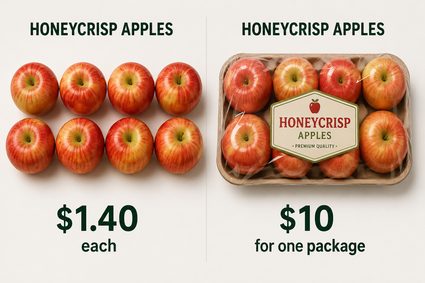
Fresh Honeycrisp apples cost $1.40 each, while a package of 8 costs $10. Which option would you choose if you want 8 apples?
The latter one! In this case, you effectively pay $1.25 for each apple ($10 divided by 8), which is cheaper than $1.40.
In the end, the unit price calculation is a simple division. During shopping, you don’t want to spend too much time on repetitive calculations.
We didn’t want to.
Do you want to see how we employed the Omni Calculator Builder for the unit price comparison?
The easiest solution is often the best. Let’s start with a simple one-line description to see how the Omni Calculator Builder handles it:
💡 AI prompt — Generate the calculator
Build a unit price comparison calculator.
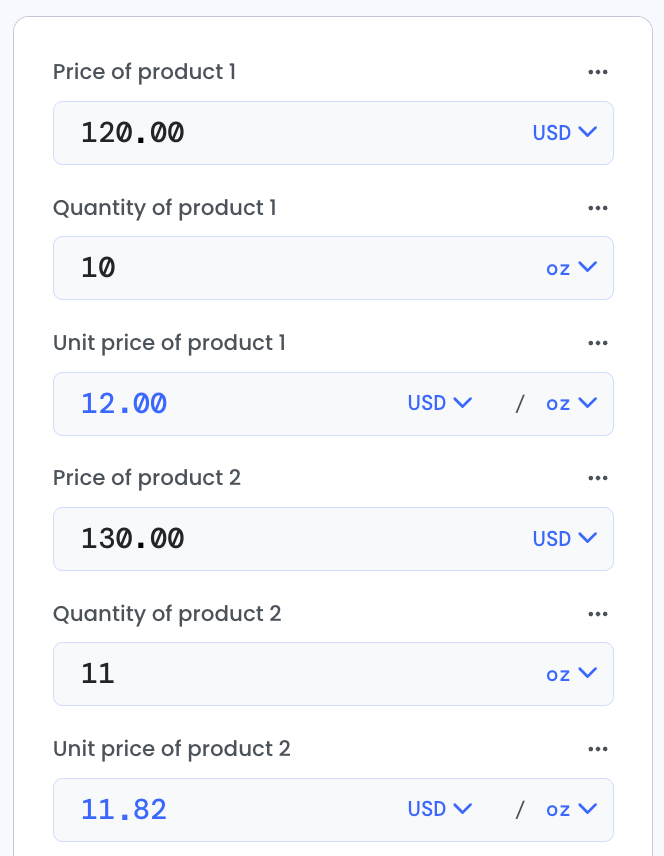
Alright! We have pretty much achieved a fully functional tool focused on the mass unit price. That’s okay.
A few improvements would be nice, though. Let’s organize them and grasp one by one in the following sections of the text. Be sure to save the calculator first!
- Rename the variables and split them into groups for better visibility.
- Set default units to ounces for convenience.
- Add an extra result showing how much we can actually save.
- Remove unnecessary variables to make the tool compact.
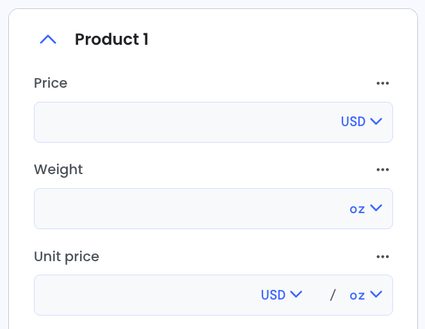
The variables name “quantity” isn’t the most fortunate one. It can mean anything from the number of items to mass or volume. We’d better clarify it before sharing the calculator with our friends or family.
Technically, the visible names of the variables are called labels inside Omni Calculator Builder, while the calculator’s sections are groups. Let’s use these terms.
💡 AI prompt — Rename the variables
Shorten the variable labels and use "weight" instead of "quantity". Split the calculator into two groups: Product 1 and Product 2.
The unit price is helpful, but we want the actual savings for the specific product weight we’re buying. Let’s introduce two new variables:
- Weight of a product we actually want to buy; and
- Total savings.
At the same time, let’s remove the unit-price variables to shorten the calculator.
💡 AI prompt — Add/remove variables
Add a new group called “How much you can save by buying product 2” with two new variables:
- Product weight we want to buy.
- Total savings for this weight.
Remove the unit price variables.
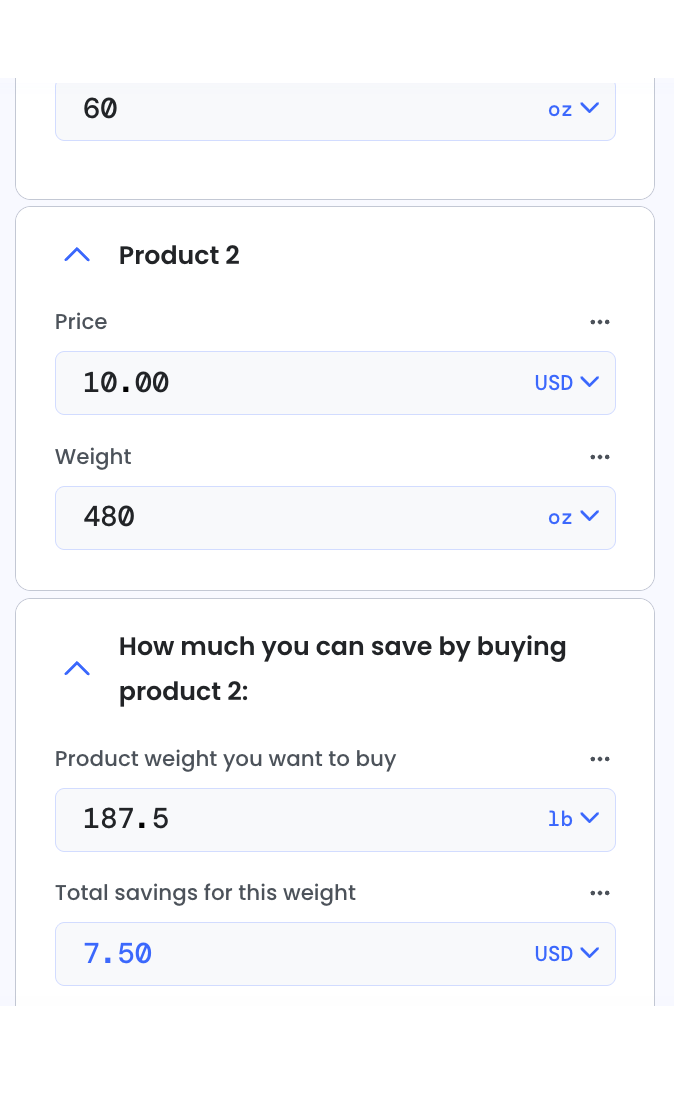
Let’s get back to our example: Honeycrisp apples at $1.40 each, or the same apples packed in 8 for $10. How much can you save if you want 50 apples? Let’s assume they weigh 187.5 lbs in total.
Our newly built calculator has the answer:
- Enter price $1.40 and weight 60 oz for product 1.
- Enter price $10 and weight 480 oz for product 2.
- Enter 187.5 lbs as the product weight we want to buy.
- The calculator shows you can save $7.50 by choosing product 2.
Now we don’t have to worry about calculating unit prices by hand. We have a trusted tool that we can share with others!