
Omni Calculator logo

Table of contents

1. AI prompting

Omni Calculator Builder: Getting Started Guide

Report Highlights

Hello! We’re thrilled that you’re trying out our newest product, Omni Calculator Builder, where you can build custom calculators using AI prompting.

This guide is a collection of helpful tips to get you started!

AI prompting is the fastest way to get results with Omni Calculator Builder, and we strongly recommend you to start with it, especially if you have no prior programming experience.

The general idea is: describe in plain language what your calculator should be, or do. Be clear and specific.

💡 Even though the interface is in English, you can prompt in any language you’d like!

Below, you can find a few ways to write your prompts for best results.

Such a one-line description is often enough.

Example prompts:

  • Make me a meeting cost at work calculator
  • Build me a water pressure at depth calculator
  • Make me an interest-only loan calculator
  • Build me a PTO accrual calculator
  • Make me a progress calculator

Instead of trying to describe the calculator, input your calculable problem.

Example prompts:

  • What’s the kinetic energy of a 200-stone car moving at 80 ft/s?
  • It’s 30°F outside with a 22 mph wind, what does it really feel like?
  • I draw 7 objects out of 12 with repetitions, how many possibilities are there?
  • What's my pay per month (assuming 22 12-hour shifts), if my overtime hourly wage is $140, average wage per hour is $100, and my standard shift is 8 hours? Also, what is my normal hourly wage for the first 8 hours of work?
  • If I invest $12,599 and get $6,589 after 6 years, what’s the rate of return (assuming monthly compounding)?

You will soon discover that sometimes, the calculator will ask you to provide data that you do not have, or output too many (or too few) results. To fix this, you can include a list of inputs and outputs in the prompt directly.

An example prompt:

I need to decide whether to pay off my loan or to invest the money.

Inputs:
Cash amount
My loan total
Loan amount already paid
Loan interest
Loan term
Monthly payments left
Investment annual interest rate
Investment term

Outputs:
Future value of remaining loan (if not paid off)
Future value of investment
Difference between these two options (positive if paying off loan is better, negative if investment is better)

3a. Add known values

Within the prompt, you can already specify the values that you know. This way, the calculator will get pre-populated with these numbers, and you won’t have to enter them manually.

3b. Create groups

Your calculator might get pretty long! To keep things organized, you can instruct Omni Calculator Builder to keep your inputs and outputs separated into logical groups.

3c. Determine units

You can add information about what should be the default unit for each of your calculator fields. Omni Calculator Builder should choose the most appropriate units automatically, but sometimes, you might want to specify some less obvious choices.

Let’s now improve the prompt we used earlier:

I need to decide whether to pay off my loan or to invest the money.

Include the following fields:

Cash amount (default: 25000 USD)

Group 1: loan
My loan total (default: 80000 USD)
Loan amount already paid
Loan interest (default: 8%)
Loan term (default: 5 years)
Monthly payments left (default: 18)

Group 2: investment
Investment annual interest rate (default: 4%)
Investment term (default: 2 years)

Group 3: outputs
Future value of remaining loan (if not paid off)
Future value of investment
Difference between these two options (positive if paying off loan is better, negative if investment is better)

If you are asking for something very specific or complex, it may happen that Omni Calculator Builder will struggle with finding the right formula. In this case, you can provide the formula straight away within the prompt to make things easier.

Example prompt:

Make me a calculator based on the FHWA Bridge Formula:

W = 500 * (LN/(N-1) + 12N + 36)

W = the overall gross weight on any group of two or more consecutive axles to the nearest 500 pounds.
L = the distance in feet between the outer axles of any group of two or more consecutive axles.
N = the number of axles in the group under consideration.

💡 You can also describe the calculation logic using plain words instead of mathematical expressions.

Once your calculator gets generated, you can keep tweaking it!

The first thing you can do is provide additional instructions within the AI prompting window. Your calculator will get modified based on these instructions, but it will retain the information you provided in the initial prompt.

You can also switch to the code editor to introduce manual changes instead. We recommend you do this once the calculator is more or less satisfactory for your purposes, and you want to introduce small changes, such as changing the names of the fields, their order, units, etc.

If you know exactly how you want your calculator to behave and what formulas to use, or if you want to tweak an already existing calculator, the code editor gives you full control over the result.

You can use one of two options: JSON or YAML. If you don’t have any previous programming experience, we recommend starting with YAML, as it is easier to read and understand.

The basic structure of the YAML base for a calculator looks like this:

equations: 
	- revenue = cost / (1 - (margin / 100))
	- profit = revenue - cost
elements:
 	cost:
		label: Cost
		monetary: true
	margin:
		label: Margin
		units:
			type: percent
			base: '%'
			default: '%'
	revenue:
		label: Revenue
		monetary: true
	profit:
		label: Profit
		monetary: true
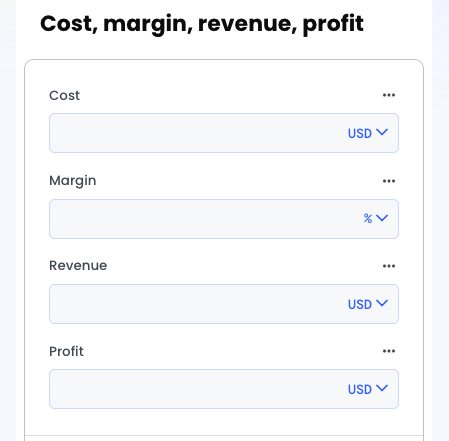
Cost, margin, revenue, profit calculator

Let’s analyze this line by line.

equations:

You have to include this line in the code. It indicates that below this line, you will list all the equations and formulas that this calculator is based on.

- revenue = cost / (1 - (margin / 100))
- profit = revenue - cost

These lines, starting with a dash (-) symbol, are all the formulas listed in your calculator. You have to include at least one equation, otherwise the calculator won’t get created.

elements:

This line is also obligatory. Below this line, you will list all the variables (that is, fields of the calculator) that the calculator will contain.

cost:
label: Cost
monetary: true

These lines define the variable “cost”. The first one defines the name of the variable. It must be the same name that you use in the equations above (capitalization matters!)
The label parameter is obligatory. This is the name of the field that will appear in the generated calculator.
The monetary parameter is optional. If you include monetary: true, the field will have a currency value.

units:
type: percent
base: '%'
default: '%'

You can, but don’t have to, specify units for each field.
The type parameter specifies the group of units (such as time, length, etc. - you can find a full list of available types in a table at the end of this document).
The base parameter describes in what unit the calculations are performed.
The default parameter describes in what unit the results will be displayed in the calculator.

If your calculator gets long, you might want to introduce groups of variables to keep it nice and tidy. Let’s take a look at a simple calculator that compares the ROI of two investments.

equations:
	- roi1 = (final_value1 - initial_investment1) / initial_investment1 * 100
	- roi2 = (final_value2 - initial_investment2) / initial_investment2 * 100
elements:
	investment 1:
		type: group
	initial_investment1:
		label: Initial investment
		monetary: true
	final_value1:
		label: Final value
		monetary: true
	roi1:
		label: ROI
		units:
			type: percent
			base: '%'
			default: '%'
 	 investment 2:
		type: group
	initial_investment2:
		label: Initial investment
		monetary: true
	final_value2:
		label: Final value
		monetary: true
	roi2:
		label: ROI
		units:
			type: percent
			base: '%'
			default: '%'
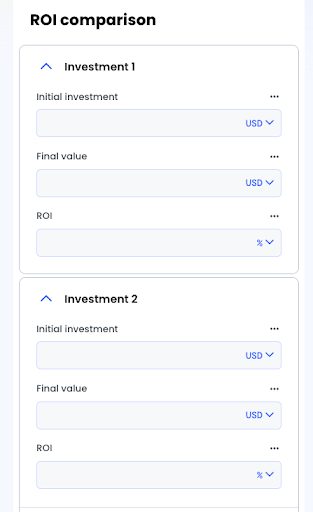
ROI comparison calculator

As you can see, this bit of code includes an additional element of a different type.

investment 1:
	type: group

Such an element is not a variable and is not used in calculations. Instead, it creates a header for a group of variables.

When you want to specify the unit, use the exact name from this list as the type. You can choose from the available units listed for the base and default parameters.

Unit type parameter

Available units (can be used for base and default parameters)

length

m, mm, cm, km, in, ft, yd, mi, nmi

time

sec, min, hrs, days, wks, mos, yrs

percent

%, ., ‰, ‱, bps

area

m², nm², μm², mm², cm², dm², km², in², ft², yd², mi², a, ha, ac

energy

J, kJ, MJ, Wh, kWh, MWh, BTU, cal, kcal

mass

kg, mg, g, dag, t, oz, lb, st

speed

m/s, km/h, ft/s, yd/s, mph, kn

acceleration

m/s², g, ft/s²

volume

m³, mm³, cm³, dm³, km³, cu in, cu ft, cu yd, ml, l, hl, US gal, UK gal, US fl oz, UK fl oz, cups, tsp, US qt, US pt, UK pt

angle

rad, deg, gon, arcmin, arcsec, mrad, μrad, π rad

temperature

°C, °F, K

temperature change

°C, °F, K

pressure

Pa, bar, psi, at, atm, Torr, hPa, kPa, MPa, GPa, inHg, mmHg

density

kg/m³, kg/L, g/mL, t/m³, g/cm³, ng/m³, oz/cu in, lb/cu in, lb/cu ft, g/L, kg/dm³, g/dL, lb/cu yd, lb/US gal, mg/L

power

W, mW, kW, MW, GW, BTU/h, hp(I)

force

N, kN, MN, GN, TN

frequency

Hz, kHz, MHz, GHz, THz, RPM

voltage

V, μV, mV, nV, kV, MV

current

A, mA, µA

resistance

Ω, mΩ, µΩ, kΩ, MΩ

rotational speed

rpm, rad/s, Hz

capacitance

F, μF, nF, pF

flow rate

m³/s, US gal/s, US gal/min, US gal/h, UK gal/s, mm³/min, US gal/hr, US gal/day, UK gal/min, UK gal/hr, UK gal/day, ft³/s, ft³/min, ft³/hr, ft³/day, mm³/s, m³/min, m³/hr, m³/day, L/s, L/min, L/hr, L/day, ml/min, ml/hr, US fl oz/min, US fl oz/hr, UK fl oz/min, UK fl oz/hr, US pt/min, US pt/hr, UK pt/min, UK pt/hr

charge

C, pC, μC, mC, e, Ah, mAh, nC

molar concentration

M, mM, nM, μM, pM, fM, aM, zM, yM

torque

N·m, kgf·cm, J/rad, lbf·ft, lbf·in

inductance

H, mH, μH, nH

moles

mol, mmol, μmol, nmol, pmol

specific heat capacity

J/(kg·K), J/(g·K), cal/(kg·K), cal/(g·K)

data sizes

B, kB, MB, GB, TB, PB, EB, ZB, YB, bit, kbit, Mbit, Gbit, Tbit, KiB, MiB, GiB, TiB, PiB, EiB, ZiB, YiB, Kibit, Mibit, Gibit, Tibit

decibel

dB

Authors of the report

Ask the authors for a quote

Copyrights